Dashboard
Parent/Student dashboard – overview
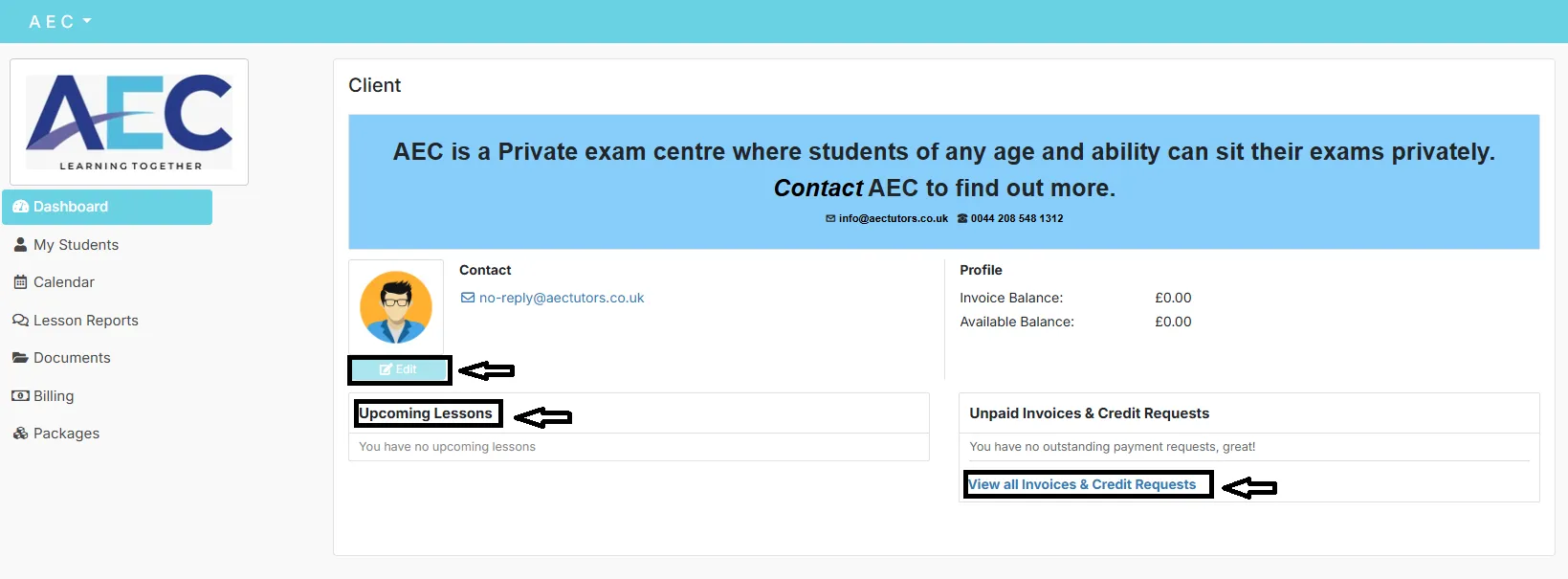
After logging in, you’ll land on the main Dashboard. This page gives you a summary of your account:
- Contact details and basic profile information.
- Your profile balance.
- Upcoming lessons for your child.
- Any unpaid invoices or credit requests.
The left-hand navigation menu lets you move to: My Students, Calendar, Lesson Reports, Documents, Billing and Packages.
Think of the Dashboard as your home page – you can always come back here to see “what’s going on” at a glance.
Calendar
Calendar – your child’s lesson schedule
The Calendar view shows your child’s lessons across the month so you can quickly see what’s booked and when.
- Select Calendar from the left-hand menu.
- Use the monthly view to see upcoming lessons and key dates.
- Move between months to plan ahead for exams or holidays.
A list view may also be available if you prefer a simple list instead of a grid.
Reports
Lesson reports – tutor feedback
Lesson Reports are where you can read tutors’ written feedback and summaries of each session.
- Open Lesson Reports from the left-hand menu.
- When reports are available, they will be listed here for you to view.
- If there are currently no reports, you may see “No Reports found.”
Lesson reports help you track progress over time and see what was covered in each session.
Documents
Documents – sharing files with AEC
The Documents section is where you can access files that AEC or tutors have shared with you, and upload any documents you need to send (for example school reports or exam access arrangement evidence).
- Open Documents from the side menu.
- If there are no documents yet, you may see “There are currently no Documents available to you.”
- Use the Single Document Upload button to upload a new document directly to your account.
Uploaded documents are stored securely and can be viewed by AEC staff when needed for support or exam bookings.
Billing
Billing – invoices, credit requests & balance
The Billing area shows how you pay for lessons and any exam or package fees. It includes your invoices, credit requests and payment history.
- Open Billing from the left-hand menu.
- Use the View all Invoices & Credit Requests button to see all billing items associated with your profile.
- Review separate tabs for Invoices, Credit Requests and Balance History.
From here you can also see your current payment methods, including:
- Your default payment method.
- Any saved credit/debit cards.
- Options such as Bank transfer and GoCardless.
Payment methods
Choosing and adding payment methods
Choosing your default method
When you select or change a payment method, you may see a Default Payment Method window.
- Select between card payments (via Stripe) or bank transfer.
- Read the guidance explaining how each payment method works.
- Click Save to confirm or Close to cancel.
Your default method is the one the system will try to use first when you pay an invoice online.
Adding a new card
When you click Add new card, you’ll see a secure form where you can enter card details.
- Enter your billing name and address.
- Select your Country/region.
- Type your card number, expiry date and security code.
- Check the information about which card types are supported or not supported.
- (Optional) Tick the box to set this card as your default payment method.
- Click Save to add the card.
Card details are handled securely via Stripe – AEC staff do not see full card numbers.
Keeping on top of payments
To stay organised with billing:
- Check the Dashboard for any unpaid invoices.
- Review Billing regularly to see your balance history.
- Update your payment method if a card expires or is replaced.
If you have any questions about an invoice, payment method or balance, please contact AEC and we’ll be happy to help.
Couldn’t find the right information?